KSETT
-CONTROL YOUR RIDE-
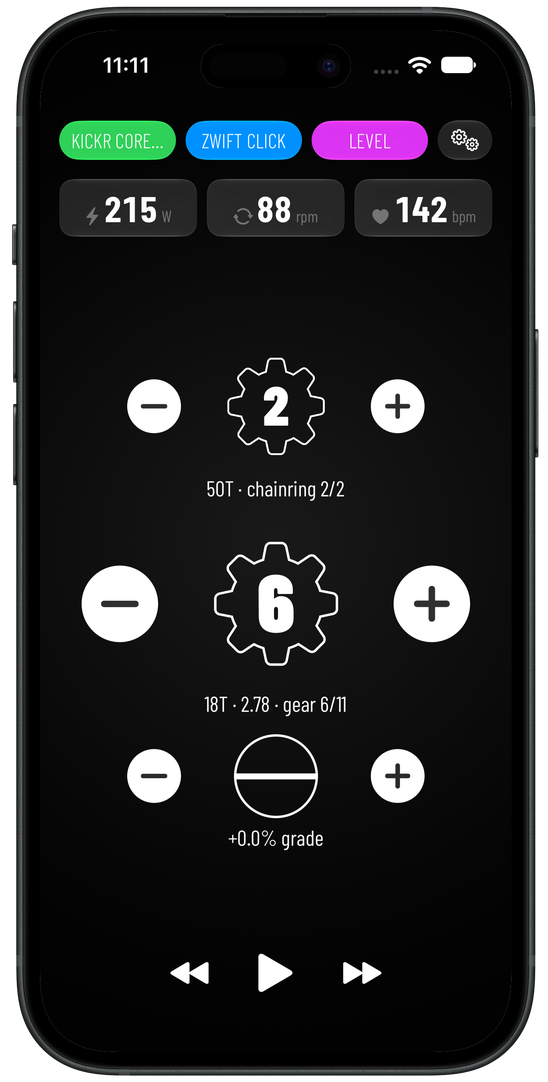
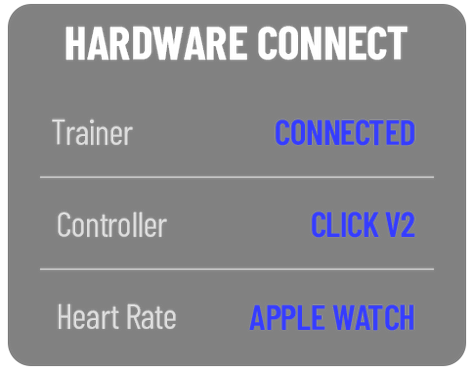
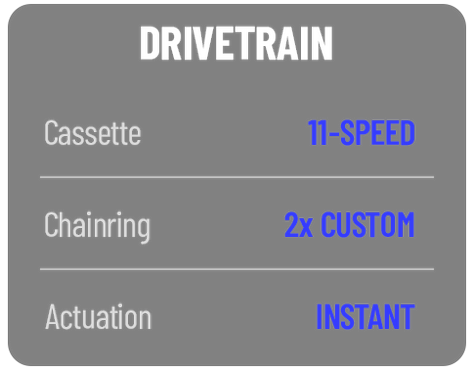
KSETT brings full virtual gear shifting to any smart trainer, in any training app you already ride in — no brand lock-in, no ecosystem required. Shift through your own drivetrain with Zwift Click, CYCPLUS BC2, or just your screen, and bring Apple Watch heart rate along with you. KSETT does it all by presenting your trainer, controller, and heart rate as one connected smart trainer to whatever app you're using.
FAQ
Do I need two devices?
Yes. Your phone runs KSETT and connects to your trainer; your training app runs on a separate device (tablet, another phone, computer, or Apple TV) and connects to your phone as if it were the trainer itself. This is a fundamental Bluetooth limitation, not a KSETT design choice - a single device can't simultaneously act as a Bluetooth client to your trainer and a Bluetooth peripheral to your training app for the same connection.Which trainers work with KSETT?
Any smart trainer supporting the standard Bluetooth FTMS (Fitness Machine Service) protocol. At this time, KSETT automatically recognizes and prioritizes common smart trainers, and falls back to showing any FTMS-compatible device if none match.Which training apps work with KSETT?
Any app that can connect to a standard Bluetooth smart trainer, since that's exactly what KSETT presents itself as. Confirmed working with Wahoo SYSTM, and MyWhoosh. Others should work the same way given they all connect via the same standard protocol, but haven't all been individually verified yet.Which shift controllers are supported?
Zwift Click and CYCPLUS BC2 are both natively supported with full button mapping. On-screen shifting is always available regardless, with no external controller required.Does KSETT work with Apple Watch?
For heart rate, yes - KSETT includes a watchOS companion app that relays your Watch's heart rate.Is KSETT available for Android?
Not currently. KSETT is an iOS app.Do I need an internet connection?
No. KSETT communicates with your trainer, controller, and training app entirely over local Bluetooth.Why doesn't shifting do anything sometimes?
Your training app has almost certainly put your trainer in ERG mode, which locks resistance to a specific power target regardless of gear. Shift normally in LEVEL/Sim mode instead.Is KSETT free?
On-screen shift control, 1x Drivetrain (with 10 speed cassette) always free. Paid premium features include external shift control options, 2x fully customizable drivetrain, Apple Watch heart rate support, and more.Is my data private?
KSETT operates entirely locally between your devices over Bluetooth - it does not require an account and does not send your ride or personal health data to any server.
USER GUIDE
What KSETT DoesKSETT works as a multi-device bridging system. First, it lets you shift virtual gears on a smart trainer - the same way you'd shift on a real bike - even in training apps that don't have their own gear-shifting controls. You can shift with one of 3 options: Cycplus BC2, Zwift Click, or on-screen buttons. KSETT will also allow you to bridge your heart rate sensor - even Apple Watch heart rate, to be sent to your training app. It runs on one phone, bridging between your trainer and your training app.Important: KSETT needs two devices. Your phone runs KSETT and connects directly to your trainer over Bluetooth. Your training app (Wahoo SYSTM, MyWhoosh, etc.) runs on a separate device - a tablet, another phone, a computer, or Apple TV - and connects to your phone as if it were the trainer.

GETTING STARTEDThe first time you open KSETT, a guided setup walks you through connecting your trainer, choosing a shift controller (if you have one), selecting a heart rate source, and setting up your drivetrain to match your actual bike.
Re-running setup: Settings → Help → "Re-run Setup Guide…" brings back the full walkthrough anytime.HOW IT WORKSERG Mode vs. Level ModeYour training app controls which mode your trainer is in:ERG mode holds your trainer at a specific power target, regardless of gear. The gear and chainring controls dim and don't respond in ERG, and the grade control switches to ERG Intensity (see below).
LEVEL mode (sometimes called "Sim" or "Resistance" mode) is where shifting actually matters. Your gear position adjusts how much simulated resistance you feel, just like shifting on a real bike changes how hard the pedals are to turn.The top right status pill shows which mode you're currently in.Gear ShiftingYour virtual drivetrain works the same way a real one does: a rear cassette and, optionally, two front chainrings. Shifting to a harder gear increases resistance in LEVEL mode; shifting easier decreases it. The math uses your configured tooth counts, so it should feel proportional to your real bike's gearing. On screen, the chainring − button moves to the small ring and + to the big ring; on a controller, the front-shift button switches between them.Grade and ERG IntensityThe circle indicator and its +/− buttons do different things depending on the mode. In LEVEL mode they add a simulated hill on top of whatever your training app is doing, in 0.5% steps — useful for climbing practice or variety. In ERG mode they adjust ERG Intensity instead: each press raises or lowers your training app's power target by 5%, up to ±50%, and the caption shows the change (for example "+10% power"). Intensity applies to every interval, so +10% turns a 200 W block into 220 W and a 300 W block into 330 W, and it resets to 0% when your training app starts a new workout. Your training app doesn't know about the change, so it will still show its own target while you ride above or below it. Grade and intensity are kept separately, so switching modes never mixes them up.Running in the BackgroundOnce your training app is connected, KSETT keeps relaying with the screen locked or while you use another app, so your trainer, controller, sensors and training app stay connected. Connect your training app to KSETT while KSETT is open on screen; iOS makes a backgrounded app harder for new devices to find.SETTINGS REFERENCEDrivetrain- Large chainring - Number of teeth on your big chainring (or your only chainring, if you don't have a front derailleur)
- Small chainring - Number of teeth on your small chainring (only shown when Front Derailleur is enabled)
- Cassette - Choose a common preset, or pick your own cog sizes
- Front Derailleur (2x) - Enables a second chainring and the front shifter row on the main screen
- Reset gear leaving ERG mode - Automatically returns to a neutral gear when your training app switches you out of ERG mode, so you're in a neutral gear when Level mode resumes.Trainer ConnectionShows your currently connected trainer, with a button to search for and select a different one.Controller:
Choose a physical shift controller if you have one — currently supports Zwift Click and CYCPLUS BC2. Tap the info button next to the section header for exact button mappings for whichever device is selected. If you don't have either, on-screen shifting always works regardless of this setting.Heart RateChoose where KSETT relays heart rate from, if at all:-None — no heart rate relayed through KSETT.
-Trainer — use a heart rate sensor paired to the trainer.
-KSETT — use a heart rate sensor paired to the phone.
-Apple Watch — use heart rate from Apple Watch. Experimental — relies on Apple's workout mirroring. If it stops working mid-ride, switching this off and back on again is the fastest recovery.Display & FeedbackHaptics: Vibration feedback on shifts and button taps
Show Gear Info: Shows/hides the small caption under each gear icon (tooth count, ratio, position)TroubleshootingTrainer"SELECT TRAINER" won't go away / no devices found**
Make sure your trainer is powered on and within Bluetooth range. KSETT automatically prioritizes recognized trainer brands, but will show all nearby FTMS-compatible devices if none match. Tap "Rescan" to search again.A device called "iPhone" (or similar) shows up in the trainer list
This is a known, harmless quirk of Apple's own Bluetooth naming — another Apple device signed into the same Apple ID nearby can occasionally be misreported this way by the system. It won't function as a trainer if selected. Just pick your actual trainer from the list instead.Trainer disconnects mid-ride
KSETT automatically attempts to reconnect. If it doesn't recover within a few seconds, check that your trainer is still powered on and back within range.ControllerZwift Click won't connect, or connects to the wrong thing
Zwift Click ships as two separate physical units that must both be powered on. The Click V2 controllers will need to be unlocked by connecting them to Zwift first. This will unlock them for use with KSETT for up to one week. If the clicks connect but KSETT does not respond to button presses, check that they are unlocked via Zwift.The controller pill says "Press Click to test"
A connected Zwift Click can't prove it's working until a button is pressed, so KSETT asks for one test press before your ride. Press any button: the pill changes to "Zwift Click" and you're set. If presses don't register even though the Click shows as connected, tap Reconnect Controller (tap the controller pill, or Settings → Controller). For Zwift Click, KSETT lets go of the Clicks for about a minute so they can fall asleep — a connected Click never sleeps — then starts looking for them again. Don't touch them during the countdown; afterwards, press a button to wake them. If they've already gone dark, tap Connect Now to skip the wait.Rapid combined-button presses cause erratic behavior
Zwift Click's own hardware can occasionally destabilize its dual-unit pairing if the front-derailleur combined-press (+ and − at once) is triggered many times in rapid succession. If this happens, tap Reconnect Controller (tap the controller pill, or Settings → Controller). For Zwift Click, KSETT lets go of the Clicks for about a minute so they can fall asleep — a connected Click never sleeps — then starts looking for them again. Don't touch them during the countdown; afterwards, press a button to wake them. If they've already gone dark, tap Connect Now to skip the wait.Zwift Click stops responding once a workout starts
Your training app should be connected to KSETT only. If the app also has your real trainer paired, remove it from the app's device list so KSETT is its only trainer. When the app connects to the trainer directly, some trainers (including Wahoo KICKR models) switch into their own virtual-shifting mode when a workout starts and take over the Clicks. The Clicks still show as connected in KSETT, but button presses stop reaching it. After removing the trainer from the app, power-cycle the trainer, then tap Reconnect Controller (tap the controller pill, or Settings → Controller). For Zwift Click, KSETT lets go of the Clicks for about a minute so they can fall asleep — a connected Click never sleeps — then starts looking for them again. Don't touch them during the countdown; afterwards, press a button to wake them. If they've already gone dark, tap Connect Now to skip the wait.Zwift Click lights stay dark and won't wake
Dark lights usually mean the Clicks are still connected to something, even if it isn't KSETT — iOS itself can keep holding them after every app is closed. Open the Settings app → Bluetooth and turn Bluetooth off, wait about 10 seconds, then turn it back on (the Control Center button only pauses Bluetooth and isn't enough). Press a button on each Click; they should start blinking blue. If they stay dark, restart your iPhone, and check that no other phone, iPad or computer nearby has them connected in a training app.Heart RateApple Watch heart rate isn't coming through
Confirm the KSETT companion app is installed on your Watch (Watch app on your iPhone → Available Apps). The first time, open the Watch app manually once to grant Health access — after that, selecting Apple Watch as your source in KSETT should launch it automatically. If it stops mid-ride, toggling the source off and back on is the fastest fix.Heart rate strap not found
Make sure your strap is actually broadcasting (usually requires movement or moisture on the electrodes) and not already connected to another app or device.GeneralApp seems slow to start / stuck on the splash screen
KSETT waits briefly for your trainer connection to resolve before showing the main screen. If your trainer is off, this will settle into "Searching…" and let you pick a trainer manually rather than waiting indefinitely.Training app can't find KSETT
Bring KSETT to the front of your phone while connecting your training app to it. iOS makes a backgrounded app harder for new devices to find; once connected, KSETT can go to the background.